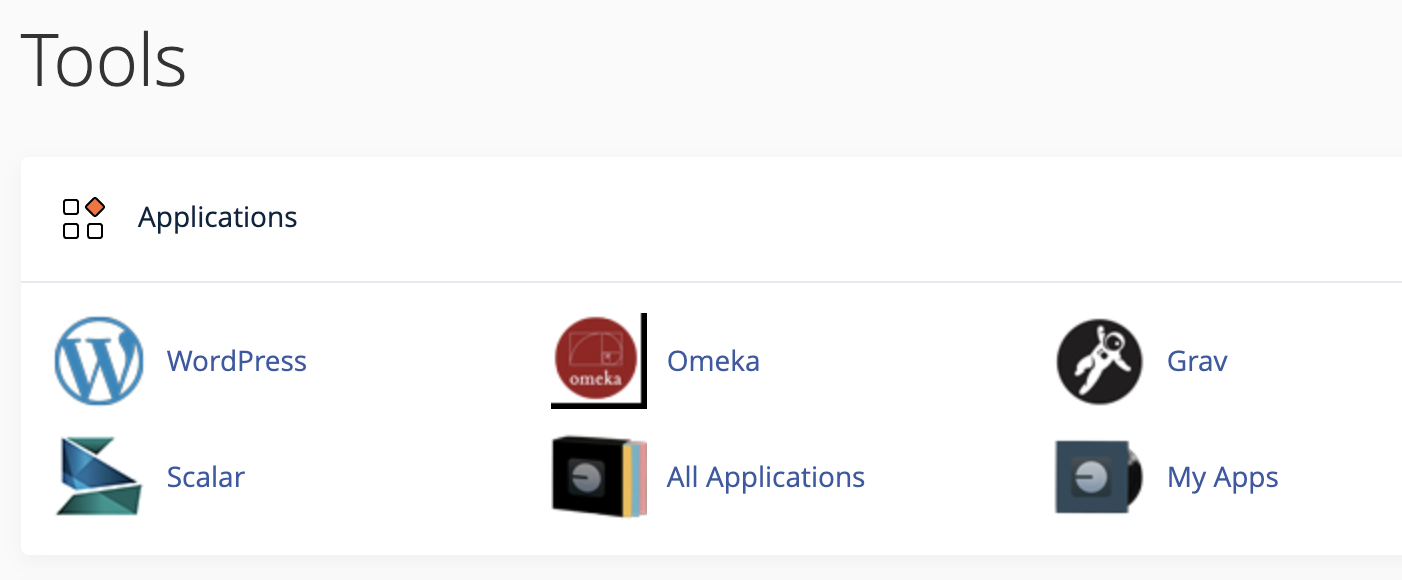
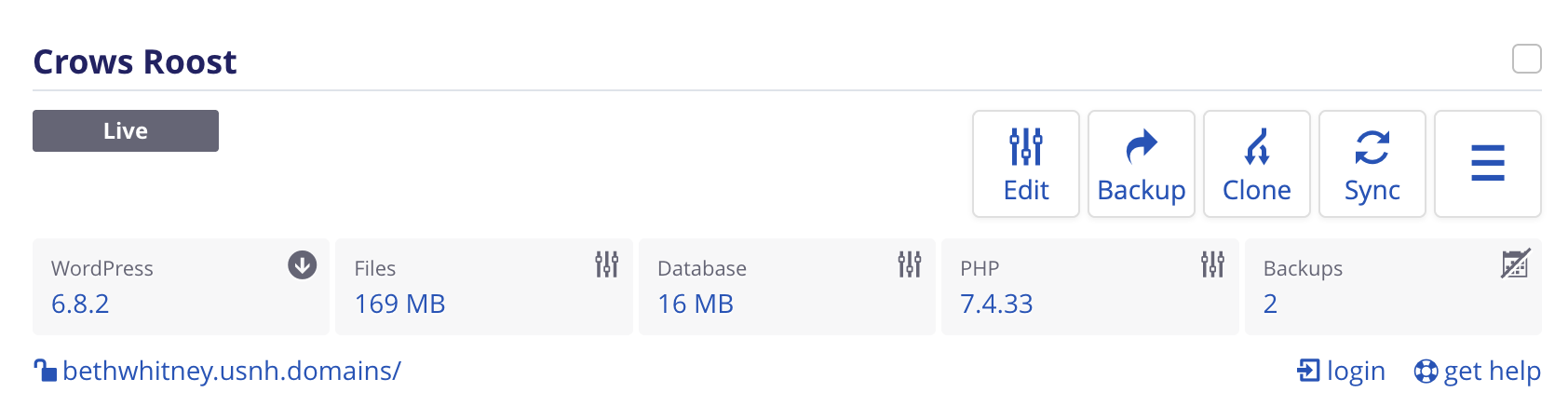
Once you’ve installed WordPress, when you click on the “My Apps” link in the Applications section you’ll see a preview of your WordPress installation in cPanel page with a preview of your site.
In the lower left is a link that says “login”. This will provide access to the WordPress dashboard and allow you to begin to work on the backend of your website (i.e. where you create all of your content).
If you set up additional user or editor accounts in WordPress, members can log in to your WordPress site using whatever username and password you have assigned to them by visiting the site’s URL with /wp-login.php added to the end. (For example: funsite.usnh.domains/wp-login.php ).
Logging in After Logging Out
You can either use the WordPress username and Password you set up during the install process to go login directly to your website. To do this, would visit your wp-login.php link, i.e. “yoursite.usnh.domains/wp-login.php”
Then enter the WordPress Username and Password you created when you installed WordPress.
or if you visit https://usnh.domains/ and click on the “Login” link in the main menu you’ll be brought to your cPanel dashboard, you can login from there following the instructions above.