Space and Storage Considerations

USNH Domains users are allocated 1 GB of space on their account. This is important to keep in mind as you install and build your website or application. You can always check your current storage amount under Statistics and Disk Usage on the right-hand side of your cPanel homepage underneath General Information.
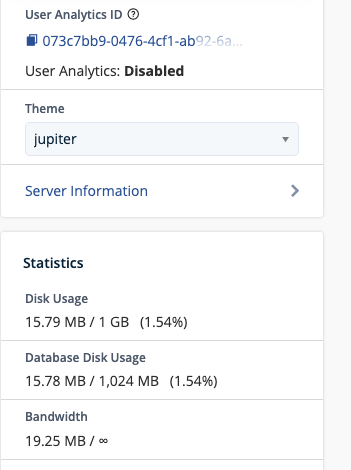
Screenshot of the cPanel Dashboard sidebar showing Disk Usage

Large files such as high resolution images and sizable documents can eat up space quickly. It’s good practice to keep sizes for large images under 500KB, ideally aiming for 100KB or less for smaller images like logos and thumbnails. Most images will not display larger than 1500 pixels, so there’s no need to upload high resolution versions.

If you find that you are quickly running out of space, check to make sure that automatic back-ups are not turned on, and that you only have one backup sitting in storage.

More information about storage and backups can be found here.
Logging in to Your WordPress Account

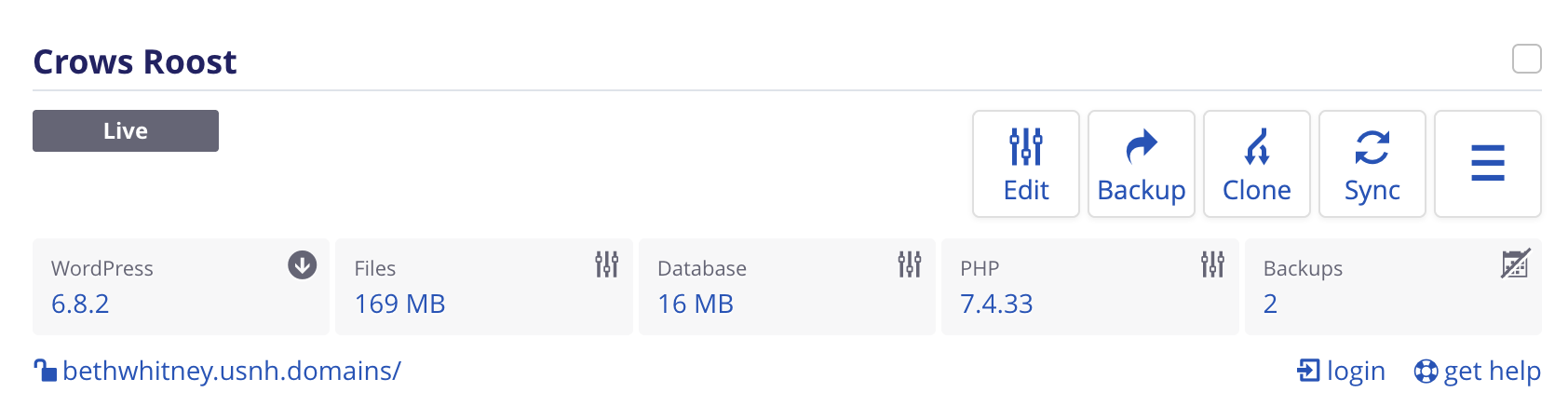
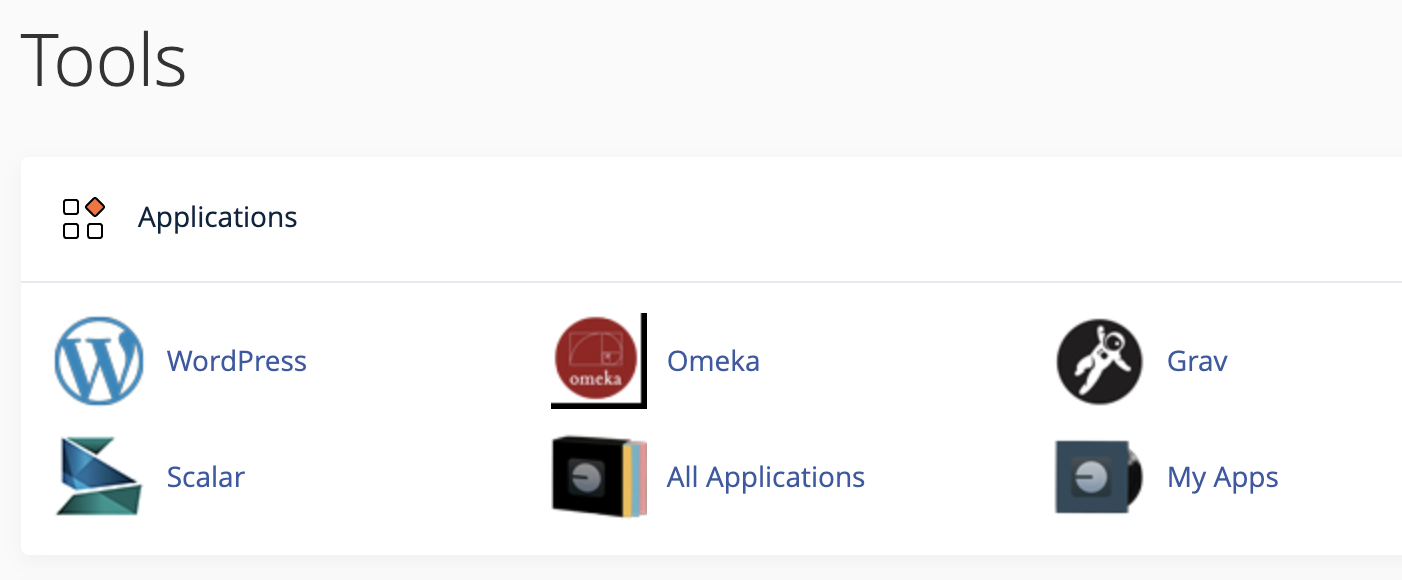
Once you’ve installed WordPress, when you click on the “My Apps” link in the Applications section you’ll see a preview of your WordPress installation in cPanel page with a preview of your site.

cPanel Dashboard: applications section

In the lower left is a link that says “login”. This will provide access to the WordPress dashboard and allow you to begin to work on the backend of your website (i.e. where you create all of your content).

Wordpress application dashboard view in cPanel

If you set up additional user or editor accounts in WordPress, members can log in to your WordPress site using whatever username and password you have assigned to them by visiting the site’s URL with /wp-login.php added to the end. (For example: funsite.usnh.domains/wp-login.php ).

Logging in After Logging Out

You can either use the WordPress username and Password you set up during the install process to go login directly to your website. To do this, would visit your wp-login.php link, i.e. “yoursite.usnh.domains/wp-login.php”

Then enter the WordPress Username and Password you created when you installed WordPress.

or if you visit https://usnh.domains/ and click on the “Login” link in the main menu you’ll be brought to your cPanel dashboard, you can login from there following the instructions above.